NOTE: To make a payment using internet Banking you need to meet the following requirements:
| • | You must be using Microsoft Internet Explorer 6 or higher. |
| • | You must be registered for internet banking for one of the South African major banks, ie: Standard Bank, Nedbank, Absa, or First National Bank. |
| • | Ability to install the SetCom Secure Instant Deposit (SID) ActiveX control into your browser. |
This facility will allow you to pay Kroll by means of a once-off payment via internet banking by automatically creating a beneficiary once you are logged into your banking site.
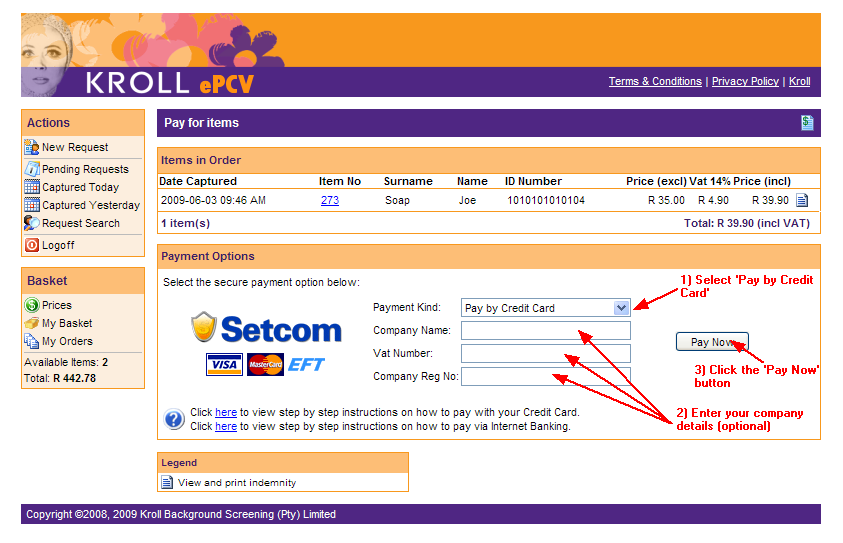
To pay for your order by using Internet Banking, you need to do the following:
| 1. | Select 'Pay by Internet Banking' from the selection list for Payment Kind. |
| 2. | Enter you company specific details. These fields are optional. |
| 3. | Click the 'Pay Now' button. |
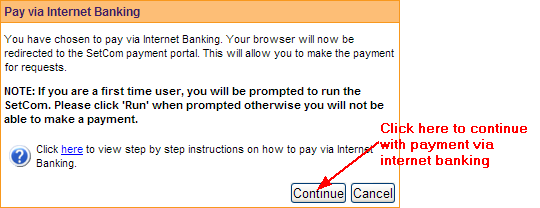
After clicking the 'Pay Now' button, a dialog will popup informing you that your will be redirected to the SetCom SID payment portal for your payment to be processed. Click the 'Continue' button to proceed to the SetCom SID payment portal to perform a transfer via internet banking. Click 'Cancel' to stop paying for the order and return to the above screen.
After clicking the 'Continue' button, your browser will be redirected to the SetCom SID website. At this point, you will be prompted to select your bank. Selecting you bank from the list will then redirect your browser to the following page to launch SetCom SID.
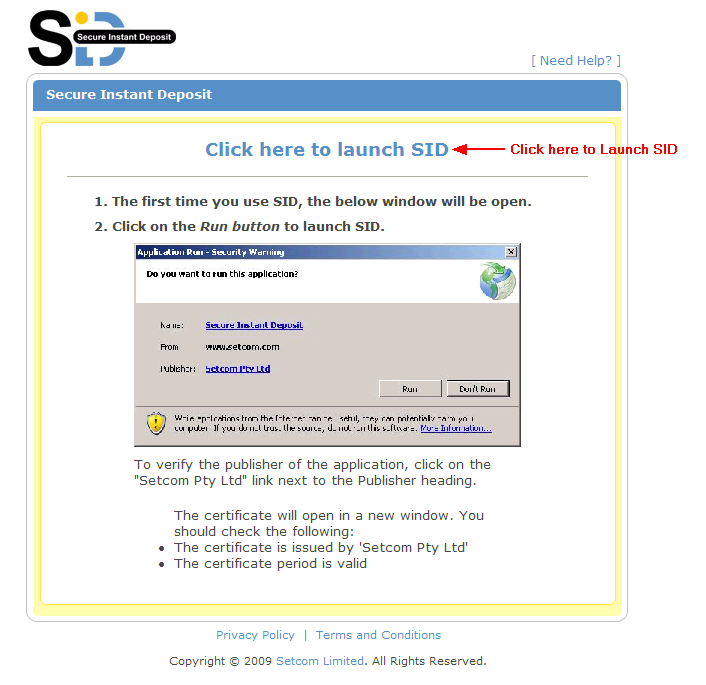
To proceed to your chosen bank, you must click 'Click here to launch SID' as shown above. You will then be redirected to the bank's website you selected.
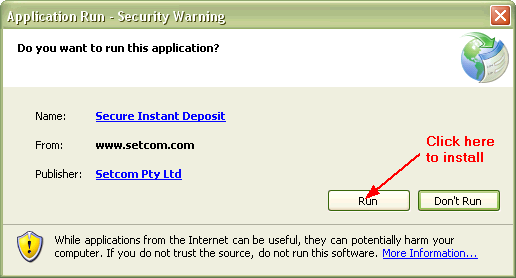
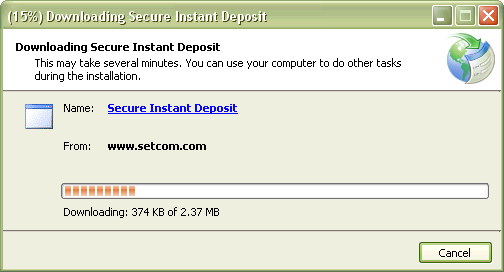
NOTE: If you have never used SetCom Instant Deposit (SID) before, you will be prompted to install and run the SetCom Instant Deposit (SID) control. When a dialog is shown with title 'Application Run - Security Warning' (see below), click on the 'Run' button to run and install the SetCom Instant Deposit control. This control will allow you to transact via internet banking. If you chose to click 'Don't Run', the control will not be installed and you will not be able to transact via internet banking. Once installed, you will be redirected to the bank you selected earlier.
After being redirect to the bank you selected previously, you will notice that a browser has been opened with a SetCom toolbar on the top of it ans the website of your bank will be shown. This toolbar is the key part of allow you to make a payment to Kroll via internet banking. There are four steps that must be followed indicated by the four tabs on the toolbar. As your proceed, the highlighted step (in blue) will progress automatically. The orange bar with text will prompt you what you need to do next. It is imperative that you wait until this prompt tells you what you must do. Do not try to rush the toolbar by clicking before it prompts you to as this could result in your transaction being canceled.

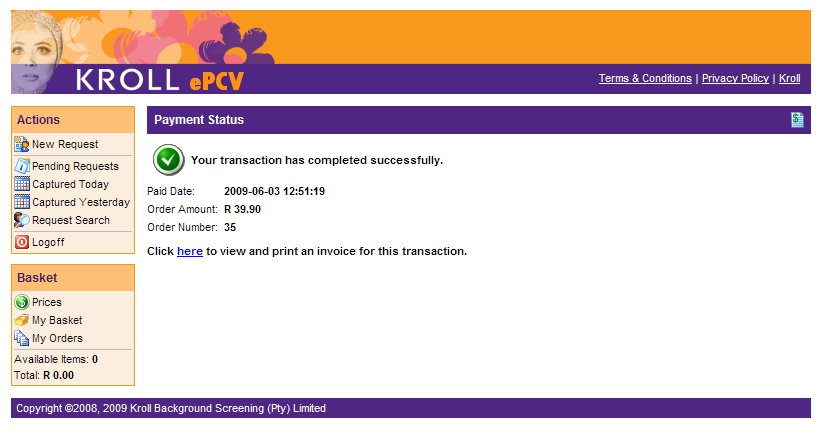
Once you have gone through all the steps required by the SetCom toolbar, you will be redirected back to Kroll's website. The below page will show the result of the transaction. If the transaction was successful, your order will be processed by Kroll. You can view the status of your requests by clicking the 'Pending Requests' menu option. NOTE: There could be a delay of a few minutes before it reflects on the request list.