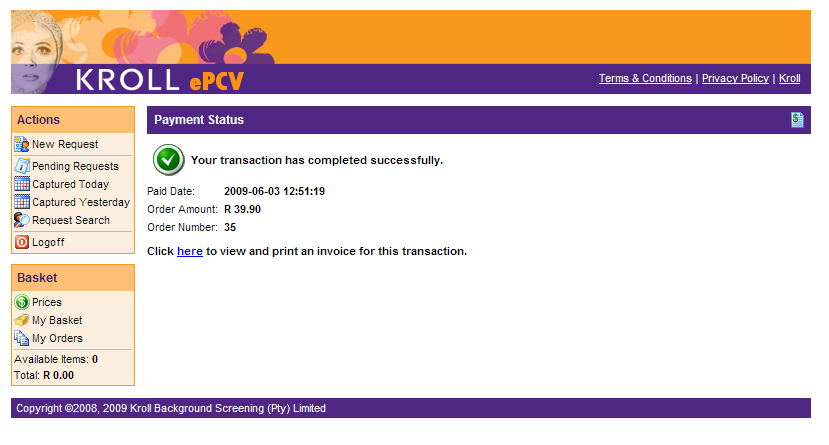
To pay for your order with your credit card, you need to do the following:
| 1. | Select 'Pay by Credit Card' from the selection list for Payment Kind. |
| 2. | Enter you company specific details. These fields are optional. |
| 3. | Click the 'Pay Now' button. |
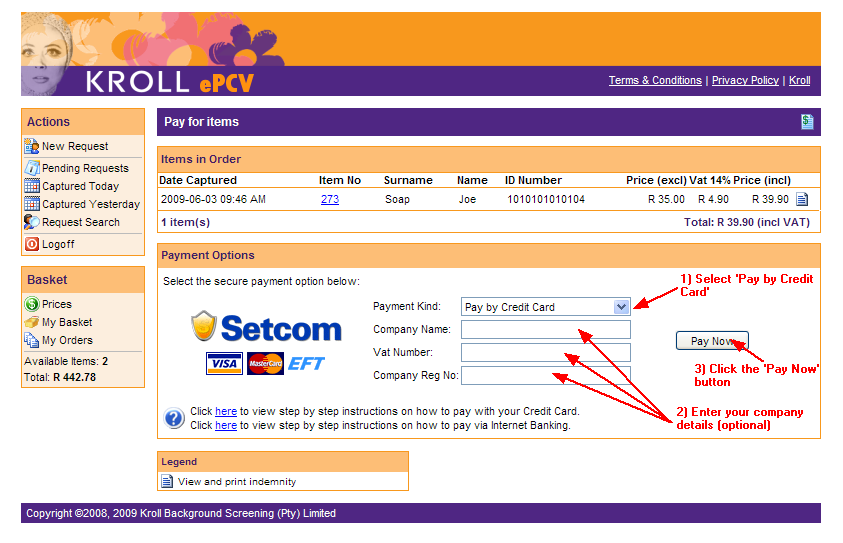
After clicking the 'Pay Now' button, a dialog will popup allowing you to enter your credit card details.
| 1. | Enter you credit card details. All fields are required and need to be specified. |
| 2. | Click 'Continue with Payment' to proceed with the credit card payment. |
WARNING: Once you click the 'Continue with Payment' button, the payment process is initiated and cannot be canceled.
| • | Credit Card Type = The kind of credit card. Currently only MasterCard and VISA Credit Cards are supported. |
| • | Credit Card Number = This is the 16 digit card number with no spaces or dashes. |
| • | Name on Credit Card = The name exactly how it appears on the credit card. |
| • | Expiry Date = The expiry date of the credit. Select the 4 digit year followed by the 2 digit month. |
| • | CVV Number = This is the 3 digit number found on the back on the credit card. |
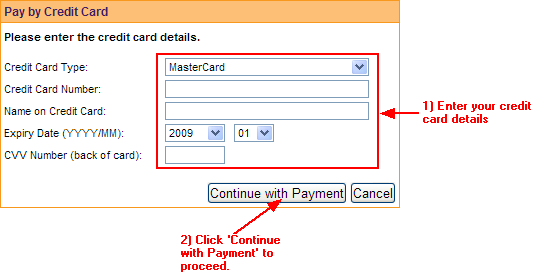
If not all credit card details have been specified, or the transaction is not successful for any reason, a message will be displayed (as seen in picture below) giving the reason the transaction could not be completed successfully.

The below page will show the result of the transaction. If the transaction was successful, your order will be processed by Kroll. You can view the status of your requests by clicking the 'Pending Requests' menu option. NOTE: There could be a delay of a few minutes before it reflects on the request list.